The editor
Twain opens documents read-only. When you want to make changes, you can turn on editing and write back to the original file. If you would rather start in edit mode, turn on Open documents ready to edit in Settings ▸ Editing. It applies once Pro is unlocked; until then documents keep opening read-only however the setting is left.
The editor is part of Twain Pro. Reading, navigating, and the review tooling stay free.
Turning editing on and off
Choose View ▸ Edit Source (⌘E) to start editing, and the same command (now Stop Editing) to stop. Pressing Esc also leaves editing (after first closing the find bar, if it is open).
Editing is its own switch and leaves the layout alone: turning it on no longer rearranges the window. The three view modes work the other way round. Picking Rendered (⌘1), Raw Source (⌘2) or Side by Side (⌘3) also starts editing, because the modes are ways of working on a document rather than read-only destinations. Without Pro they simply switch the view: choosing one never raises the unlock prompt in the middle of reading.
Two ways to edit
- Markdown files are edited directly in the rendered pane, a block at a time. Type on the formatted document and Twain keeps the underlying Markdown in step. See Editing in blocks below.
- MDX files are always edited as source, because MDX mixes prose with components. The status bar shows "Editing source" to make this clear.
Either way you can edit the raw text in the source pane, with syntax highlighting for headings, emphasis, code, lists, links, and more.
Editing in blocks
A Markdown document is a stack of blocks: paragraphs, headings, lists, quotes, tables, code fences, diagrams. The rendered editor works in those terms, so a command that changes a whole block is never offered from a selection of three words inside a line.
The block toolbar
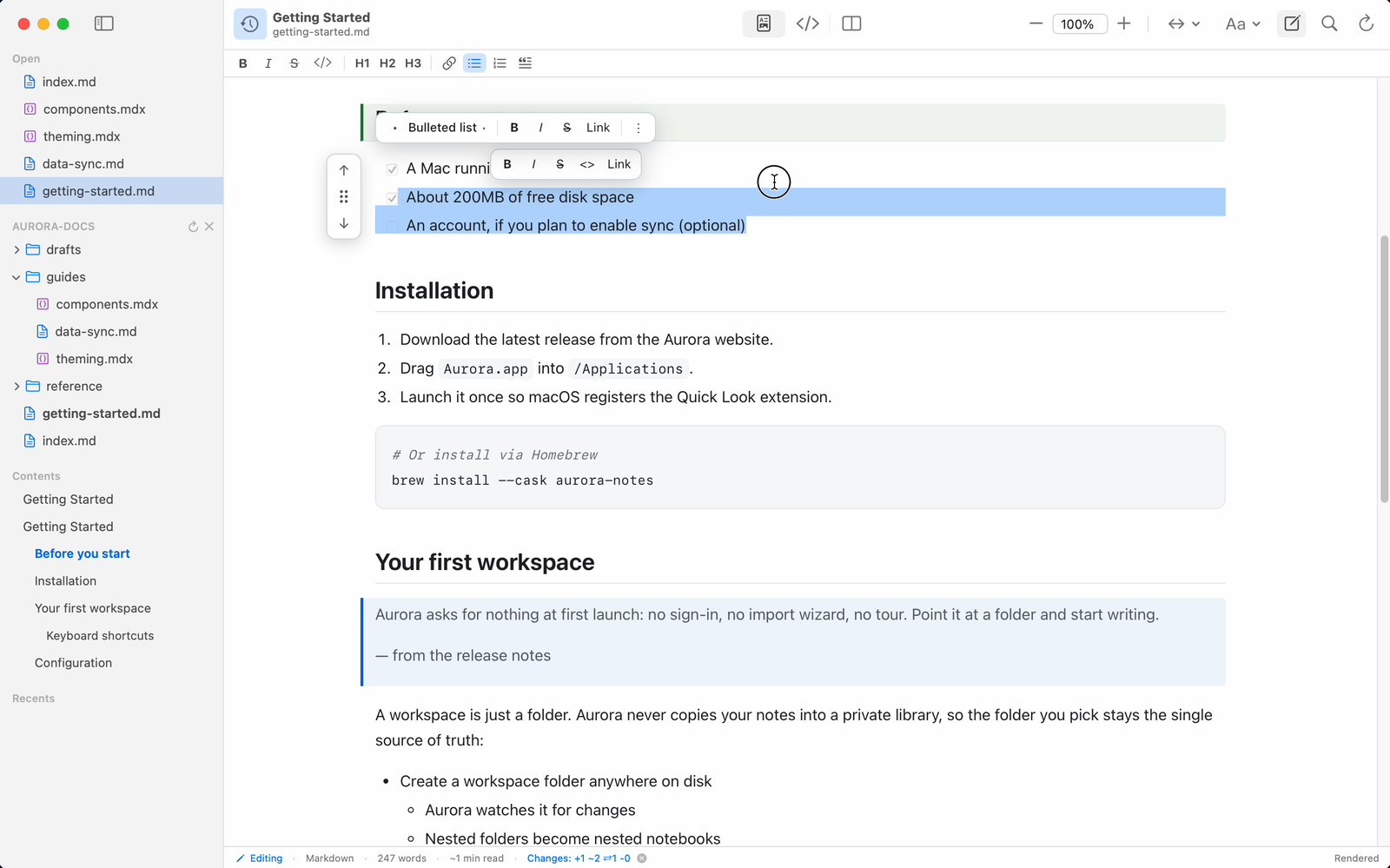
A toolbar floats above whichever block holds the cursor, clear of the text it belongs to. The toolbar carries:
- The block's type, named rather than left to be inferred: Paragraph, Heading 1 to 6, Bulleted list, Numbered list, Quote, Code, Table, Divider, Image, Maths, Diagram, Callout or Frontmatter. Click it to see what this block could become, with the current type ticked. Prose blocks (paragraphs, headings, lists, quotes and code) convert freely between themselves, and a paragraph or a list can also become a table. A table, divider, formula, diagram, callout or frontmatter block carries something no other type can hold, so the menu says it cannot be changed rather than offering a conversion that would lose it.
- Inline marks: B, I,
Sand Link. These apply to the whole block without selecting anything first, and a button lights up when the whole block already carries that mark, so it reads as something you can switch back off. Partial coverage stays unlit, because pressing the button then strips the mark from the part that had it. - The block's own actions, under the ⋮ menu: Copy, Cut, Duplicate, Insert empty block above, Insert empty block below, and Delete. Once something has been copied or cut, Paste above and Paste below appear alongside them.
- A language picker, on a code block. It recognises the aliases fences are actually written
with, so
```jsalready reads as JavaScript.
Changing a type rebuilds the block as the target type rather than wrapping it, so the result is always flat: a quote turned into a list is a list, not a quote containing one, and a list turned into a heading keeps its text. The Format menu and the app's own toolbar use the same engine.
Selecting and moving
Selecting text raises a small floating toolbar beside it carrying the inline marks only: bold, italic, strikethrough, code and link. It stays out of the way inside code, maths and diagram blocks, where formatting does not apply.
Clicking four times selects the whole block, so you can take a block without dragging across it. Inside a table, the fourth click takes the row.
Hovering a block shows a pill in the left margin: the arrows move the block one step past its neighbours, and the grip drags it anywhere in the document. A frontmatter block is pinned to the top, so nothing moves above it.
Pasted rich text is stripped back to its structure, so styling from a web page or a word processor does not come with it.
Tables
Hovering a row shows a small cluster at its right edge to insert a row above, delete the row, or insert a row below. Column operations live on the block toolbar, and a + Add row strip under the table adds one at the end. Every operation keeps the table rectangular and keeps its header row, because a ragged or headerless GFM table does not survive a round trip back to Markdown.
Undo
Block operations rebuild the document directly, which the browser's own undo stack has no record of. Twain holds the document as it was before the last block operation, so ⌘Z reverses it. Typing hands ⌘Z back to ordinary text undo.
What is written back
Saving writes the Markdown the document actually implies, not the renderer's guesses about it. A fenced code block that declared no language stays bare on save rather than picking up the language the syntax highlighter inferred for it, and a GFM alert stays an alert rather than flattening into prose.
Formatting commands
The Format menu applies common Markdown formatting to the selection while editing:
| Command | Shortcut |
|---|---|
| Bold | ⌘B |
| Italic | ⌘I |
| Strikethrough | ⇧⌘X |
| Code (inline, or a fenced block for a multi-line selection) | ⇧⌘C |
| Heading 1 / 2 / 3 | ⌥⌘1 / ⌥⌘2 / ⌥⌘3 |
| Body Text (remove heading) | ⌥⌘0 |
| Link | ⌘K |
| Bulleted List | ⇧⌘8 |
| Numbered List | ⇧⌘7 |
| Blockquote | (no default shortcut) |
The Format ▸ Code Block Language submenu chooses the language for a fenced code block. In the rendered pane it retargets the block the cursor is in, promoting inline code to a block if needed. In the source pane (and so for every MDX document) it wraps the current selection in a new fenced block with that language.
Finding and replacing
Edit ▸ Find in Document… (⌘F) opens the find bar, and Find Next (⌘G) and Find Previous (⇧⌘G) step through the matches. Three toggles in the bar refine matching: Match case, Whole word, and Regular expression. The bar reports "n of m", or "Not found", "Invalid pattern", or "Pattern too complex" for a pattern that would take too long to run.
Edit ▸ Find and Replace… (⌥⌘F) opens the same bar with the replace row showing, and
adds Replace and Replace All. In regular-expression mode the replacement understands $1,
$2 and so on for captured groups; otherwise it is inserted literally, so $5.00 stays $5.00.
Replace All in the source pane is a single edit, so one ⌘Z undoes the whole batch.
Opening the find bar and searching are free. Replacing writes to the document, so it is part of Twain Pro: Replace and Replace All show the unlock prompt without it. With Pro, the command turns editing on for you, and starting from the rendered view can take a second click while Twain reveals the source pane.
Saving
Twain writes to the original file only when you Save (⌘S). There is no automatic save to your document.
As a safety net against crashes, Twain keeps a private autosave snapshot of unsaved edits in its Application Support folder. If the app quits unexpectedly with unsaved changes, the next launch offers to restore them:
Twain recovered unsaved changes to "…".
You can then Restore and save or revert, or Discard the recovered edits. These snapshots are cleared as soon as you save, revert, or close the document cleanly.
Reverting
File ▸ Revert to Saved discards your unsaved edits and reloads the document from disk. If the file also changed on disk while you were editing, saving prompts you to choose between overwriting the disk version and reloading it. See When a file changes on disk.
Version history
Separately from autosave, Twain keeps its own local history of the documents it opens, independently of Git. A version is recorded whenever a document's content is about to be replaced: when you save, when the file changes on disk, before a revert or a restore, and before a project-wide replace. Simply reading a document records nothing. Versions are recorded whether or not Pro is unlocked, so an overwrite stays recoverable either way; browsing, comparing and restoring them are Twain Pro features.
Choose View ▸ Version History… to browse the revisions for the selected document. The sheet lists each version with what triggered it, when it was captured, and how big it is, and previews the selected one as plain text. From there you can Show Changes Against This, which uses that version as the diff baseline (see Showing changes), or Restore This Version…, which brings the old content back as unsaved edits you can then save or revert. The current content is recorded first, so a restore is itself reversible.
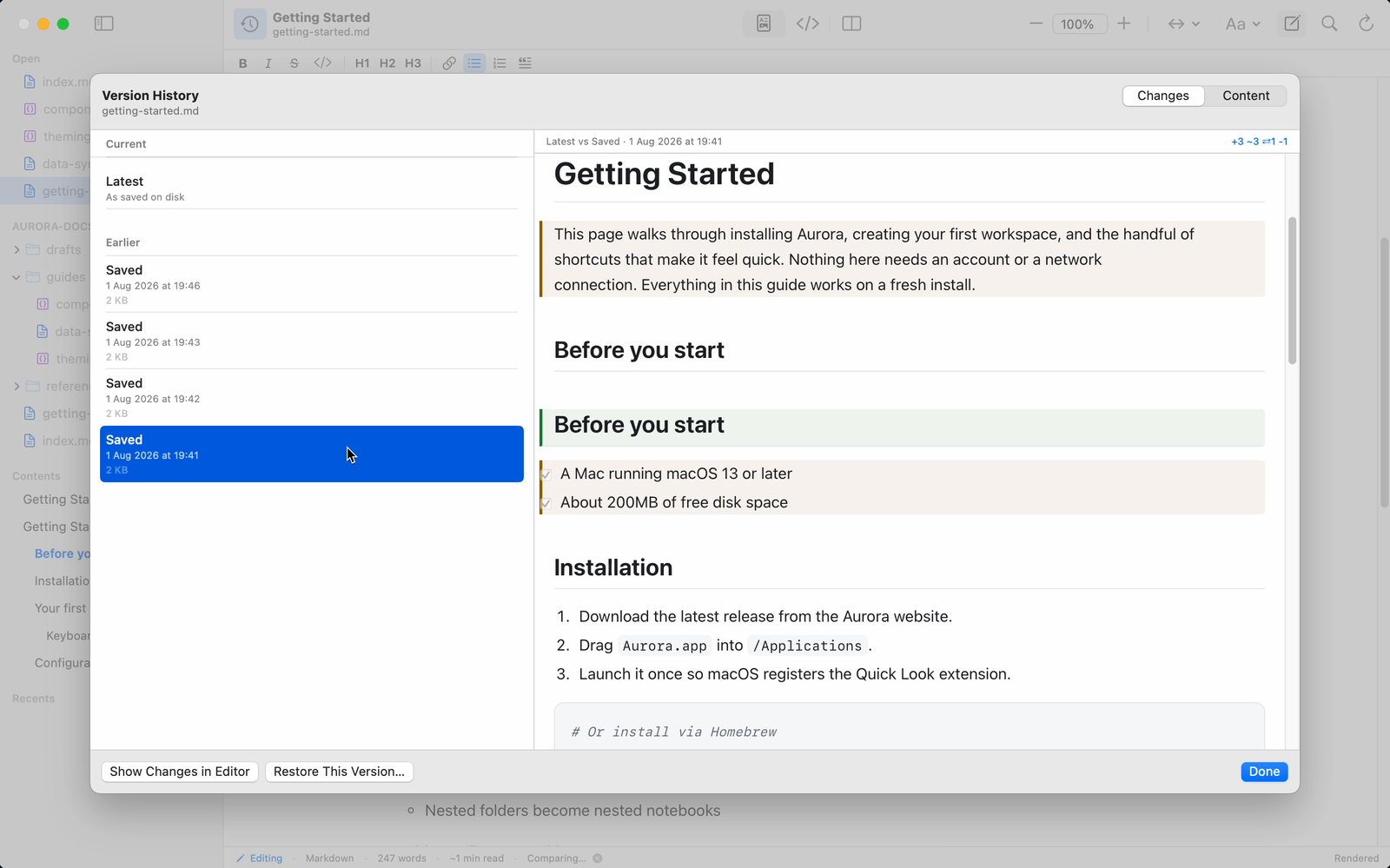
History is kept in Twain's Application Support folder and never touches your document or your repository. It is on by default and is pruned after 30 days or 100 MB, whichever binds first. Settings ▸ Version History turns it off, adjusts both limits, lists every tracked document, and clears the history for one document or for all of them.
Automatic correction is off
Twain never auto-corrects spelling or rewrites quotation marks and dashes in a source file, because silently changing code or syntax would be unhelpful. Spelling and grammar checking are available as visible aids you turn on yourself. See Proofing.