The window
Twain uses a single main window with a sidebar on the left and the current document on the right. Opening several documents adds them as entries in the sidebar rather than opening separate windows. Because of that, Close Document (⌘W) closes the current document and not the window, and closing the window leaves Twain running: click its Dock icon to bring it back.
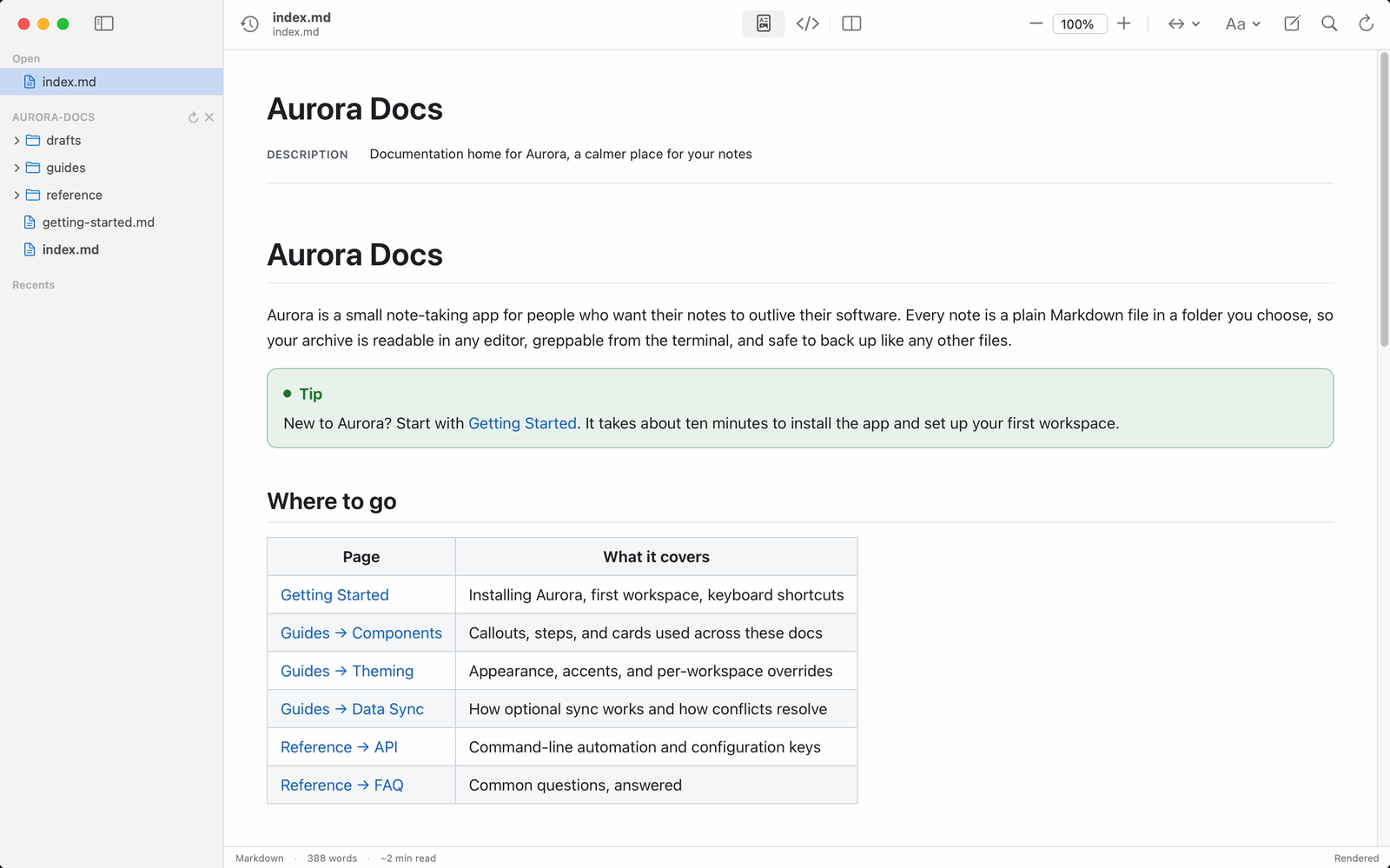
The sidebar
The sidebar collects everything to do with navigation. Depending on what you have open, it shows:
- Open: the documents you currently have open. Markdown files use a document icon and MDX files a braces icon. Hover a row to reveal a close button.
- A folder section, when you have opened a project folder, with the folder name as its header and buttons to rescan or close it. See Working with a folder.
- Contents: the table of contents for the current document, shown when it has headings. See Table of contents.
- Recents: recently opened files you do not currently have open.
Toggle the sidebar with View ▸ Show Sidebar (⌃⌘S).
Right-clicking a row in the sidebar opens a contextual menu, on open tabs, workspace files, folders and recents alike: Open, Open as Text, Open with Finder, Show in Finder, Close Others, a Copy Path submenu (relative, full, shell-escaped, URL, or just the name), Quick Look, New Text File, New Folder, and Move to Trash. Deleting a file closes its tab first, so nothing keeps rendering a document that has moved to the Trash. The menu behaves the same in both editions.
The toolbar
The toolbar holds, from the centre outward:
- When a document is open: a segmented control to switch between Rendered, Raw Source, and Side by Side views. With Pro unlocked, picking a mode also starts editing; see The editor.
- When a document is open: a zoom stepper (minus, the current percentage, plus) and a width button for the reading width, including Full Width and Custom. See Reading settings.
- The reading-settings menu (the text-format icon), covering appearance, theme, font, width, text size, and a Load Remote Images toggle.
- When a document is open: buttons to start or stop editing (⌘E), find in the document (⌘F), and reload from disk (⌘R). Editing is a Twain Pro feature, so without Pro the edit button shows the unlock prompt. Find and reload are free.
The status bar
The bar along the bottom of a document summarises it: whether you are editing, whether it is Markdown or MDX, the word count, and an estimated reading time. It also surfaces the number of diagnostics, the number of unresolved review notes, how many remote images were blocked when Load Remote Images is off, and a changes summary when a diff baseline is set. If you have unsaved edits it shows an Unsaved marker and a Save button. The current view mode is named on the right.
The welcome screen
When no document is open, Twain shows a welcome screen with buttons to open a file or a folder, a list of recent documents, and, if Twain is not yet your default Markdown viewer, a Make Default prompt. It also reminds you that you can press the spacebar on a file in Finder for a quick preview.
If another app on your Mac also installs a Markdown Quick Look extension, the welcome screen says so, because macOS picks the preview extension separately from the default app. Open Settings… goes to the pane where that is settled, and Dismiss hides the notice until a new competitor turns up. See Quick Look previews.
When a file changes on disk
Each open document watches its own file. If the file changes in another app:
- If you have no unsaved edits, Twain quietly reloads the new version and the status bar offers Updated on disk — Show what changed. Click it to mark up what the other app or agent altered, or dismiss it with the ✕. Several rewrites in a row are shown as one cumulative difference, measured from the first change you have not yet reviewed.
- If you do have unsaved edits, Twain never overwrites them. The status bar shows an orange Changed on disk — Reload button. Clicking it asks whether to discard your edits and reload the version from disk.
You can always reload manually with View ▸ Reload From Disk (⌘R).
The file tree for an open folder is not watched automatically. Use Rescan folder in the sidebar to pick up new or renamed files.
Settings
Twain ▸ Settings… (⌘,) opens a small preferences window with these tabs:
- Editing: Open documents ready to edit, off by default. When on, a document opens in edit mode rather than read-only. Editing is a Pro feature, so until Pro is unlocked documents keep opening read-only however this is set.
- Quick Look: whether Twain is the default app for Markdown, and which other apps install a competing preview extension, with a button through to the macOS pane that decides which one answers the spacebar. See Quick Look previews.
- Version History: turn the local history on or off, set how long versions are kept and how much disk they may use, and review or clear what has been captured.
- Agents: Publish workspace state for local agents, on by default. See MCP server.
- Privacy: on the direct edition only, the opt-out for anonymous usage check-ins. The Mac App Store edition sends none, so it has no such tab. See Editions.