Reading settings
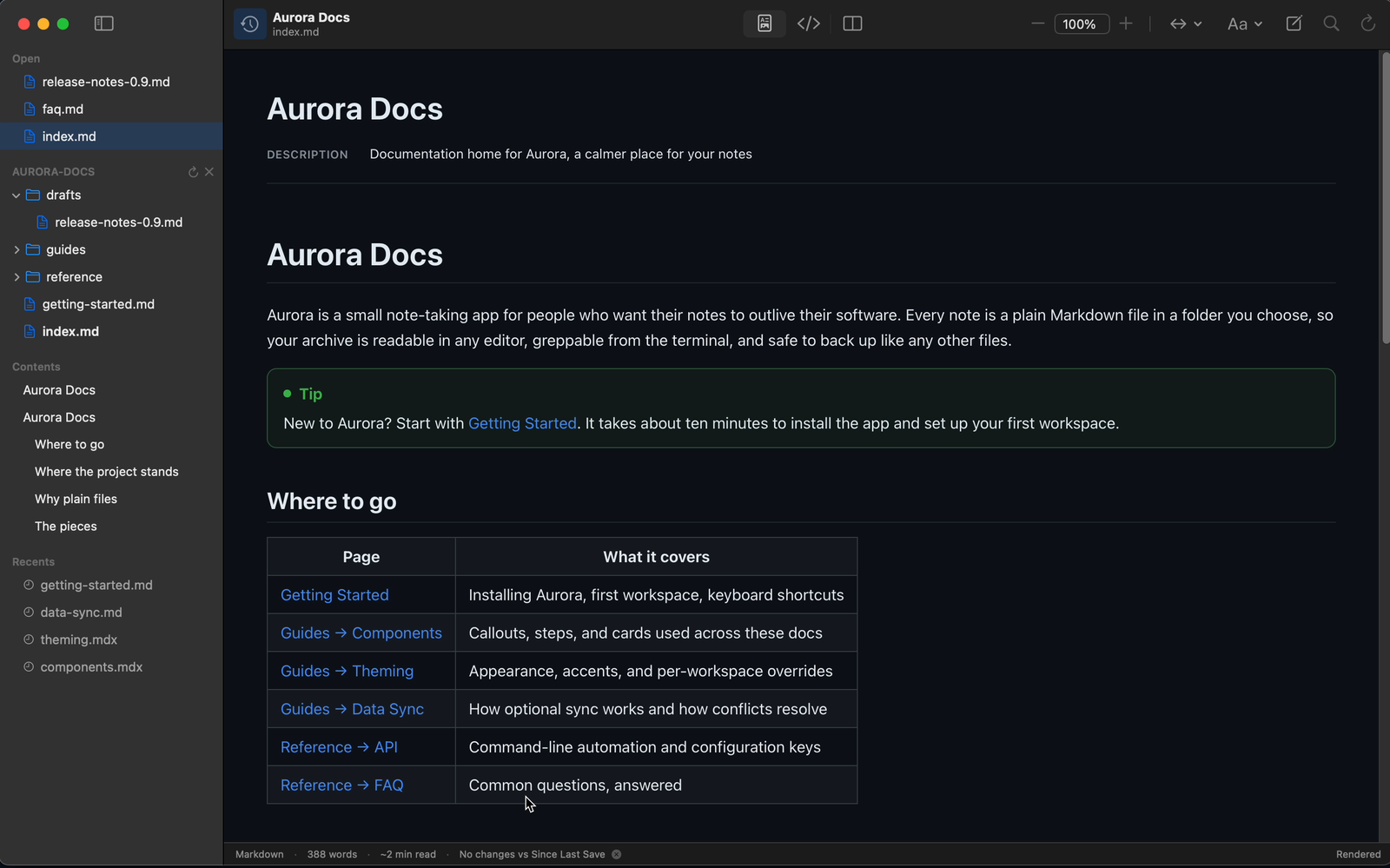
The reading-settings menu in the toolbar (the text-format icon) controls how a document looks while you read it. Theme, font, width and text size apply to the rendered view; Appearance also sets the light or dark appearance of the window itself. All of them are remembered between sessions.
Appearance
| Option | Effect |
|---|---|
| System | Follows your macOS light or dark setting (default) |
| Light | Always light |
| Dark | Always dark |
Theme
| Option | Effect |
|---|---|
| Default | A clean light or dark page that follows the appearance setting |
| Sepia | A warm, paper-like page |
| High Contrast | Pure black on white for maximum legibility |
The Default theme is free. Sepia and High Contrast are Twain Pro features. Without Pro, selecting one shows the unlock prompt and the theme returns to Default.
Font
| Option | Effect |
|---|---|
| Sans-serif | The system sans-serif face (default) |
| Serif | A serif reading face |
Width
The reading width sets how wide the text column is before it stops growing. It has its own button in the toolbar as well as a place in the reading-settings menu:
| Option | Column width |
|---|---|
| Narrow | 620 px |
| Normal | 760 px (default) |
| Wide | 960 px |
| Full Width | No cap: the column follows the window |
| Custom… | Set by the margin either side |
Full Width caps nothing. The text reflows as you resize the window, and images and diagrams scale with it, so a wide window is filled rather than left empty either side of a fixed measure.
Custom… holds a margin rather than a column width, which is the difference between it and the fixed presets: the gap either side stays where you put it as the window resizes, instead of the measure changing and the text reflowing to a new one. While Custom is on, a ruler runs across the top of the page with a marker at each margin. Drag either marker and both move, because a margin is symmetric and the column stays centred. The markers are focusable, so the margin can also be set from the keyboard. The column never narrows below 240 px however far the markers are pushed in.
The width button also lists Wider Margin, Narrower Margin and Reset Margin while Custom is selected, which step the margin without a pointer.
Text size and zoom
These are two different settings. Text size is typography: it scales the text and leaves a Mermaid diagram at its natural size. Zoom scales the whole page the way a PDF viewer does, so prose, tables and diagrams grow together.
| Action | Shortcut |
|---|---|
| Larger Text | ⌘= |
| Smaller Text | ⌘- |
| Actual Size (text) | ⌘0 |
| Zoom In | ⌥⌘= |
| Zoom Out | ⌥⌘- |
| Actual Size (zoom) | ⌥⌘0 |
The Actual Size item in the reading-settings menu shows the current text percentage in its label. Text scaling is limited to a range of roughly 75% to 160%, and Actual Size resets it to 100%.
Zoom has its own stepper in the toolbar: minus, a boxed percentage that drops down to a list of stops, and plus. The buttons walk a fixed ladder from 10% to 450%, so each press lands on a round percentage, and the level survives a switch between view modes.
Remote images
The same menu has a Load Remote Images toggle, on by default in the Mac app. Turn it off and Twain blocks images a document tries to fetch over the network, and the status bar shows how many were blocked. Images stored next to the document are unaffected, and a remote link you click yourself is not blocked either: only images loaded automatically are.
Quick Look previews always block remote images, whatever this toggle is set to, so a spacebar preview never reaches the network. See Quick Look previews.