Searching a folder
With a folder open, you can search across every Markdown and MDX file in it.
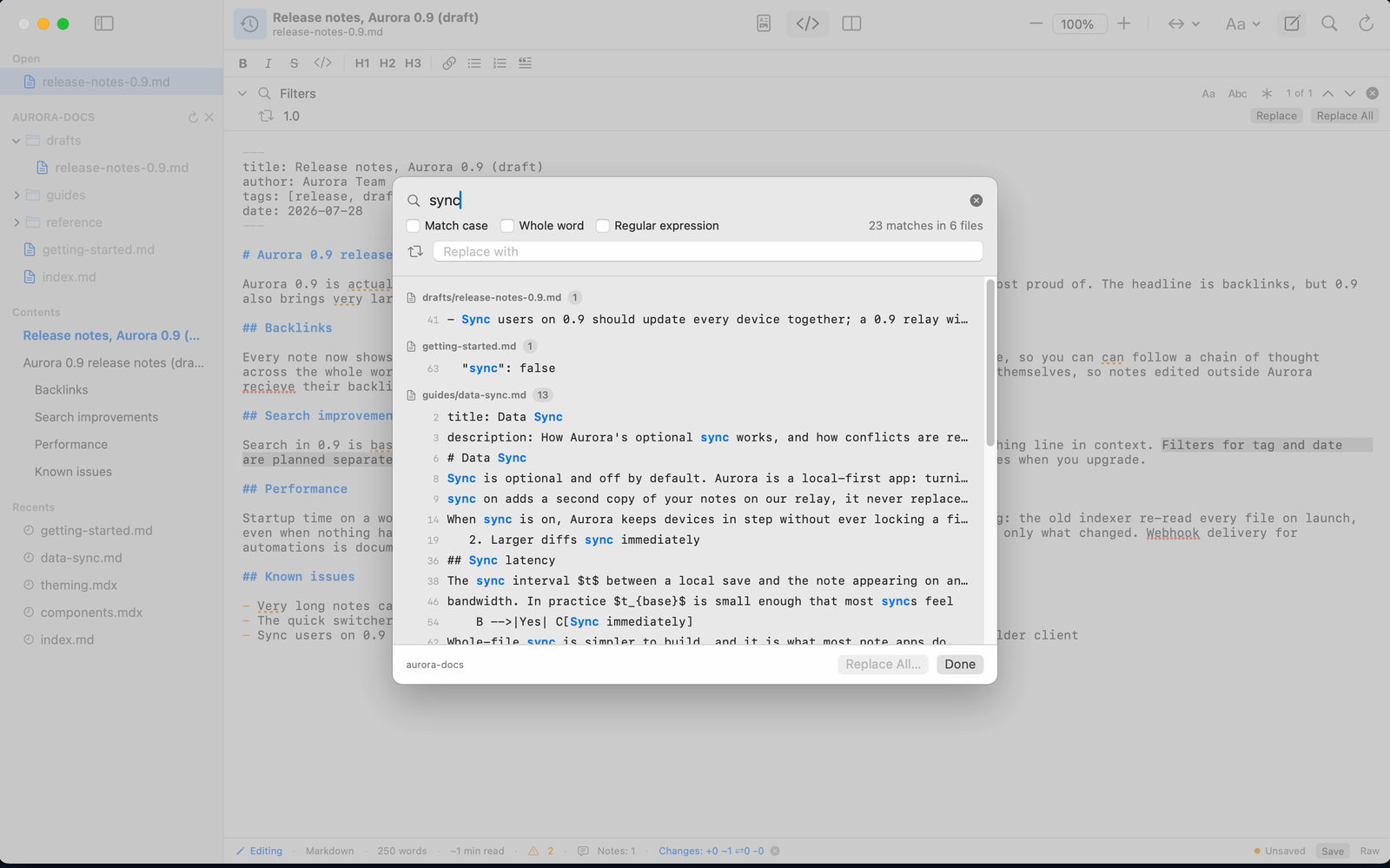
Opening a folder is part of Twain Pro. Once a folder is open, searching it is not separately gated, though replacing across files is (see below).
Open search with Edit ▸ Search in Folder… (⇧⌘F). This is distinct from Find in Document (⌘F), which searches only the file you are reading.
How matching works
Three options refine the search, all off by default:
- Match case: when off,
Notealso matchesnote. - Whole word: when on,
catwill not matchcategory. - Regular expression: when on, the query is read as a regular expression rather than literal text. A pattern Twain cannot use is reported as Invalid pattern before any file is scanned.
Clicking a result carries all three settings into the in-document find bar, so the file you open matches exactly what the folder search matched.
Results
Results are grouped by file. Each group shows the file's path relative to the project folder and how many matching lines it contains: a line holding the term twice counts once. Each result shows its line number and the line's text, with every occurrence on that line highlighted. A very long line is shown windowed around its first match rather than from the start of the line. Click a result to open that file and jump to the match.
The status line reports the totals, for example "12 matches in 4 files", or "No matches".
Replacing across the folder
Type into the Replace with field, then choose Replace All… to change every match across the folder. Twain never rewrites files straight away: it first shows a preview listing each file that will change, how many occurrences it holds, and the before and after of each changed line (up to 40 lines shown per file). That occurrence count counts individual hits, so it can be higher than the matching-line count in the results list. Confirm with Replace N in M Files to apply.
A file is skipped rather than rewritten if it changed on disk since the preview, is open with unsaved edits, is not valid UTF-8, is too large, or cannot be read, among other reasons. The summary then reports how many files were replaced and how many were skipped or failed, and offers Undo All, which restores each file unless you have edited it since the replace. Whether that undo outlasts the current session depends on Version History: with it on, a snapshot of every file is saved before the replace, so the change can always be undone; with it off, the preview warns that the replace can only be undone during the current session.
Replacing across the folder is part of Twain Pro. Alone among the Pro commands here, Replace All… is greyed out rather than showing the unlock prompt: without a licence the button stays disabled, with the tooltip "Unlock Pro to replace across files". It is also disabled while the scan is still running, so a replace is always planned from a complete set of results.
Scope and limits
Search covers the same files as the file tree: Markdown and MDX files, skipping build folders and hidden files, and descending at most ten levels below the folder you opened. For responsiveness it skips files larger than 5 MB and collects at most 200 matching lines per file, so a very repetitive file can list fewer results than it really contains.