Showing changes
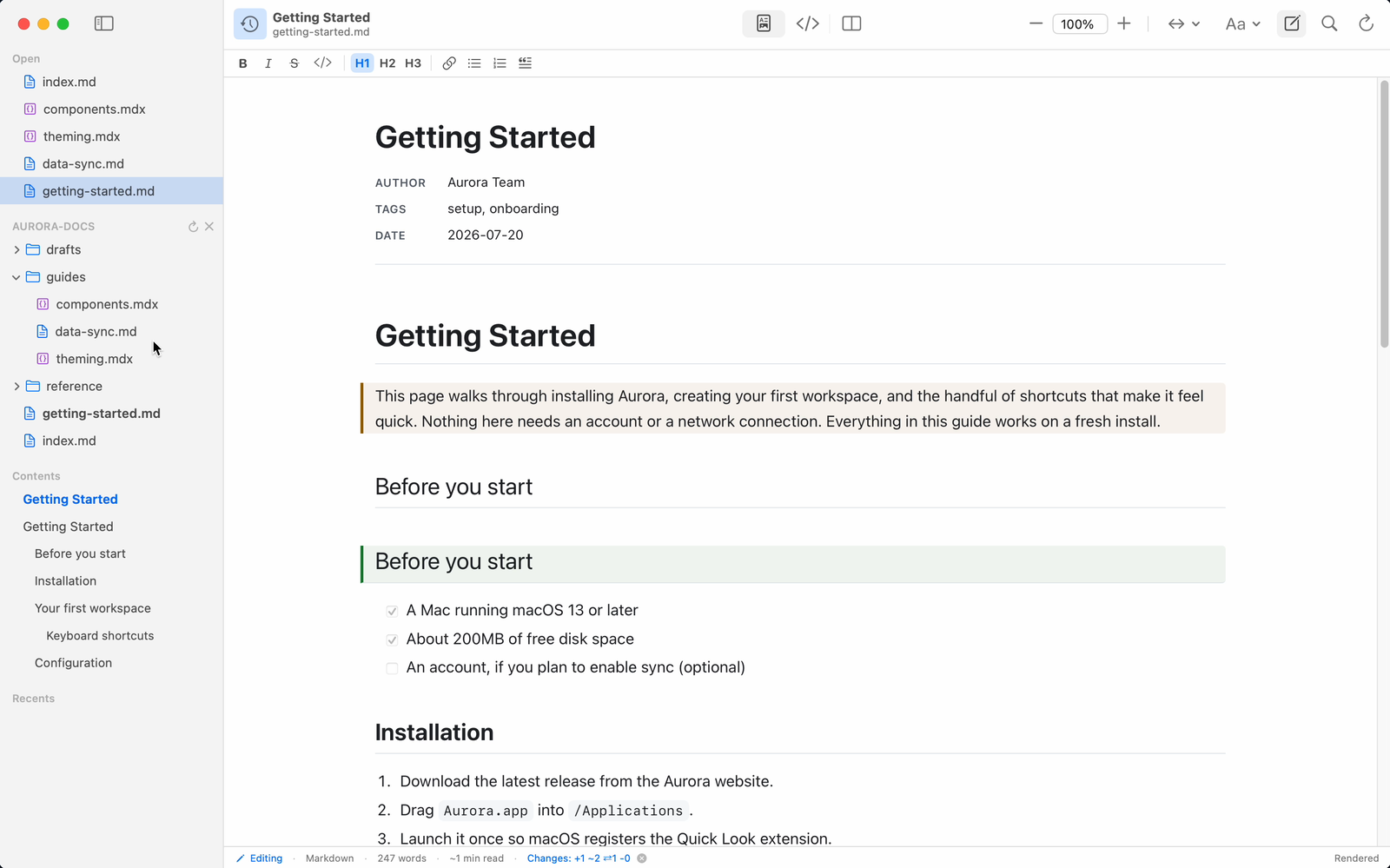
Twain can mark what has changed in a document, comparing the current version against a baseline and drawing change bars in the margin of the rendered view.
Showing changes is a free feature, including the one-click diff Twain offers when something else rewrites the document you have open. Version History is a Twain Pro feature: revisions are still captured without a licence, so an overwrite stays recoverable and nothing is missing if you unlock Pro later, but browsing them, comparing against one and restoring one need Pro.
Choosing a baseline
Choose View ▸ Show Changes ▸ Baseline and pick what to compare against:
| Baseline | Compares against |
|---|---|
| Off | Nothing; no change marks |
| Since Last Save | The version last read from or written to disk |
| Compared to Git HEAD | The file's committed version at Git HEAD |
| Against a Version | A revision from the document's local version history |
Against a Version cannot be picked from this menu. You set it from the version history browser (View ▸ Version History…, a Pro feature) with Show Changes Against This; the menu then lists it so you can see what you are comparing against and switch away again.
What you see
Changes are shown at the level of top-level blocks: a paragraph, a heading, a whole list, a whole table, a code block, and so on. Editing one item of a list therefore marks the whole list. Each marked block gets a coloured bar in the left margin:
- Green for an added block.
- Amber for a changed block.
- The accent colour (blue by default, following the reading theme) for a block that moved.
- A faded, struck-through ghost with a "removed" tag where a block used to be.
On a very large comparison Twain stops pairing blocks up so the view stays responsive. Past that point a rewritten block is reported as one removed block plus one added block, and moves are not detected, so the counts read higher than the edit you actually made.
The status bar summarises the counts as added, changed, moved and removed, for example "Changes: +3 ~1 ⇄0 -2". It reads "No changes" when the baseline resolves and nothing differs, and "Comparing…" while the comparison is still running.
Change detection compares the meaning of each block, not its rendered markup, so re-rendering a diagram or re-highlighting code never shows up as a false change.
Changes made by another app
When another app or an agent changes a file on disk while you have no unsaved edits of your own, Twain adopts the new content and the status bar offers Updated on disk — Show what changed. Choosing it compares the current content against a snapshot taken just before the change landed, so a burst of edits reads as one cumulative diff rather than several. It switches to the rendered view if you were in Raw Source, since the marks are drawn there. Dismiss the offer with the ✕ beside it.
If you do have unsaved edits, nothing is adopted: the status bar shows Changed on disk — Reload instead, and the choice is yours.
Git baseline notes
The Compared to Git HEAD baseline works for a file inside a Git repository that has at least one commit. If the file is not tracked in Git, is in a folder that is not a repository, or the repository has no commits, the status bar shows Not tracked in Git and no change marks appear. There is no error and nothing to configure; it simply has nothing to compare against.
Comparing against Git HEAD runs git, which the App Store sandbox does not allow. The Mac App
Store edition therefore offers the Since Last Save and Against a Version baselines, not
Compared to Git HEAD. The direct download offers all baselines. See
Editions.