Quick Look previews
Twain installs a Finder Quick Look extension. Select a Markdown or MDX file in Finder and press the spacebar, and Twain draws a fully rendered preview using the same engine as the app, so the preview matches what you would see if you opened the file, except that remote images are always blocked.
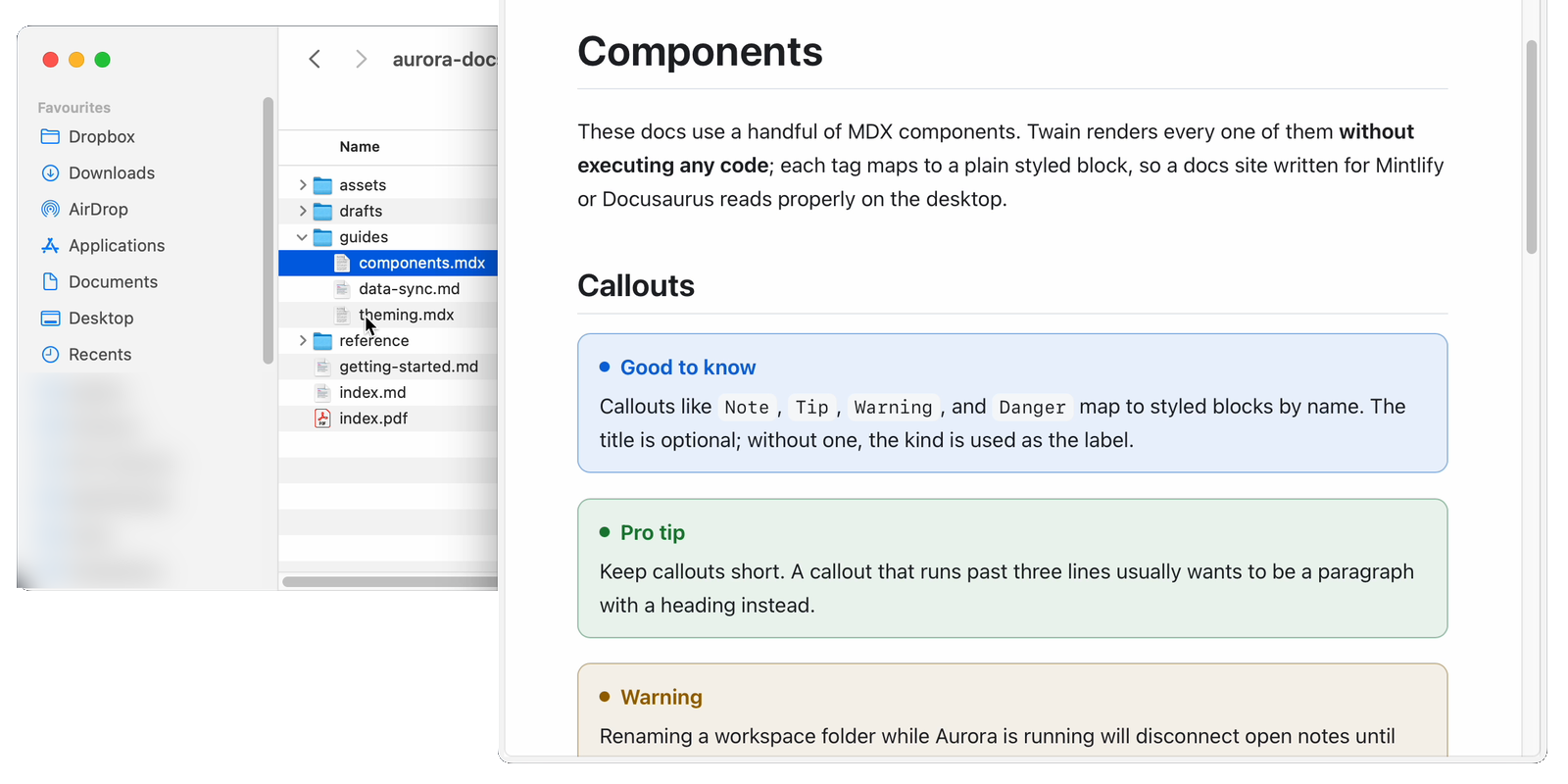
A preview uses the reading theme, font, width and text size you have set in the app, including Full Width and a custom margin. A preview extension is a separate process with its own preferences, so Twain publishes yours where the extension can read them: the app writes them whenever you change a typography setting and once at launch. On the Mac App Store edition that shared location resolves per app container, so previews there keep the built-in 760 px measure and normal text size instead. See Editions.
The preview honours light and dark appearance and applies a project component map when a
.twain-md.json file sits beside the document and the sandbox allows that sibling read; if the
read is refused, the document previews without a map. See Component maps.
Turning it on
Twain has to be in /Applications. The Quick Look extension only activates when the app lives
there. That is the one hard requirement.
Making Twain your default handler is worth doing as well, and is covered in Make Twain your default viewer, but it decides what a double-click opens and nothing more. It does not settle the preview: macOS picks the Quick Look extension separately, so Twain can be your verified default Markdown app and still have every spacebar preview drawn by a second Markdown app you have installed.
When another app answers the spacebar
Other Markdown software installs a Quick Look extension too, and macOS chooses between them itself. When it chooses another app, a spacebar preview has none of Twain's diagrams, maths or callouts, which reads as Twain being broken.
Twain ▸ Settings ▸ Quick Look tells you who is actually answering. Twain draws a small bundled file through Quick Look in the background, off screen, and watches for its own preview extension to report back. If something else answers, the pane says so rather than leaving you to guess, and lists every app on your Mac that claims the same file types.
Each rival there has a Switch Off button that turns off that app's Markdown Quick Look extension and nothing else, with Undo to put it straight back. Open Quick Look Extension Settings… goes to the same choice in the macOS pane (Login Items and Extensions) if you would rather make it there. The welcome screen shows the same notice, dismissible until a new competitor appears.
On the Mac App Store edition the check cannot run and no rival can be switched off from inside Twain: the sandbox stops the app reading the extension's report or changing another app's settings. That edition lists the rivals and sends you to the macOS pane. See Editions.
Turning Twain on does not settle it, and neither does switching off the one app you suspect. An extension you have never touched still competes, and can still win, so a Mac with two other Markdown apps needs both of them switched off. If previews change the day you install some unrelated app, that app almost certainly brought a Markdown Quick Look extension with it. Twain's Settings ▸ Quick Look list is the one to work through: every app named there is a candidate.
If previews still are not Twain's after that, the reliable way to see who answered is to watch which extension the preview starts. In Terminal:
pkill -f QuickLookExtension
qlmanage -p ~/path/to/your.md >/dev/null 2>&1 &
sleep 6; ps aux | grep -i appex | grep -v System/Library
The Markdown extension listed with a fresh start time is the one drawing your previews. If it is
not Twain.app/Contents/PlugIns/QuickLookExtension.appex, that app is still switched on
somewhere.
Which file types are previewed:
| Extensions | Type |
|---|---|
.md, .markdown, .mdown, .mkd, .mkdn | Markdown |
.mdx | MDX |
What a preview can and cannot show
The Quick Look preview renders the full document: headings, tables, task lists, code with syntax highlighting, maths, alerts, and MDX components all appear exactly as in the app.
macOS runs the Quick Look extension in a sandbox, and whether it may read a file sitting next to
the document is decided per file rather than granted up front. In practice a sibling read is
usually refused, and a refusal degrades quietly. A document that references a local image by a relative path, for example
, shows a broken-image placeholder in the Quick Look preview. The text
and formatting still render correctly, only the local image is missing.
Open the same file in the Twain app and the image appears normally. Remote (https://) images
are a separate matter: Quick Look always blocks them, with no setting to allow them, because a
preview drawn by a spacebar press must never phone home to a tracking pixel. The app loads them
unless you turn Load Remote Images off. Images already embedded as data render in both places.
On the Mac App Store edition, the app is sandboxed too, so a sibling image appears once you have opened its enclosing folder (open the folder, or the whole project, to grant access). The direct download reads sibling images straight away. See Editions.
When a preview cannot be drawn
If a file cannot be previewed, the Quick Look panel shows a short message under the heading "Could not preview this document." The exact line depends on the cause, for example "This document could not be read." for a file macOS cannot open, or "Rendering failed." if the document itself could not be rendered. These are informational; opening the file in the app usually shows more detail.